

Quick Apps could already bring live data into an app from connectors and content sources: action connectors (services like Jira, Slack, and Google Drive), Spaces documents, web search, and AI inference all run at view time, not build time. The solution introduces live structured data from your data lakes, databases, and other analytics data stores.
Your governed Amazon Quick Sight datasets, the SPICE and Direct Query tables that hold your business metrics, couldn’t be queried live from an app. Any dataset numbers an app showed were baked in when the agent built it. A snapshot frozen at publish time.
That was fine for a static report, but it broke down the moment you wanted an app whose metrics reflected what your data says today, and that respected who is allowed to see which rows.
Amazon Quick is an AI-powered unified intelligence service that connects all governed enterprise data and enterprise content, so teams can explore, analyze, and act from one place. With Quick Apps, you can describe an application in plain language and have an AI agent write and deploy a working web application, with no hands-on coding or DevOps steps required.
In this post, we introduce Live Data in Apps, which AI-built Amazon Quick apps can use to query governed Quick Sight datasets in real time instead of relying on static, build-time snapshots. We walk through how to build, publish, and share a live-data app using natural language prompts, and cover key considerations, consent requirements, and query guardrails.
What’s new: Live Data in Apps
With Live Data in Apps, a published Quick app queries your governed Quick Sight datasets live, every time a user opens it. Say your support team keeps asking, “How many tickets did we close last week, broken down by region?” Today someone opens the data, writes the query, exports a chart, and pastes it into Slack. Every week. What you actually want is an app anyone on the team can open and get today’s answer, without touching SQL.
You can now describe the app you want in natural language. The agent finds the relevant curated datasets on its own, then writes the SQL needed to answer your question while it’s building the app. After the app is published, the app re-runs that same SQL every time someone opens it, so the numbers are always current. And critically, the query executes as the person viewing it. As a result, each user sees exactly the data they’re allowed to see.
With this launch, we’re bringing governed structured datasets from Quick into apps.
Who it’s for and why it matters
Live Data in Apps expands the utility of apps by addressing multiple concerns for different personas in an organization, which the following table outlines.
| Audience | Benefit |
| Business operations owners | Build apps over live datasets using natural language. No manual data refresh, no snapshot management, no custom API plumbing. |
| Knowledge workers (Users) | Open an app and see your numbers. Current as of right now, filtered to what you are allowed to see. |
| Data and application administrators | Existing row-level security (RLS) and column-level security (CLS) rules apply automatically. No new permission model to learn. Consent is enforced on the server side on every query. |
Prerequisites
Before you begin, make sure that you have the following:
- Access to datasets already created with or without row-level security (RLS) and column-level security (CLS).
- Supported dataset modes: Both SPICE (in-memory) and Direct Query datasets are supported. See documentation for the list of Direct Query supported data sources.
- Consent: Each viewer must consent per dataset for first use. Builders approve datasets during the build process.
- Authentication: Viewers must be authenticated Quick users. Anonymous or public access is not supported for apps using live datasets. This is enforced at multiple layers.
Use case
In Amazon Quick, Live Data in Apps is built on two flows, and everything else builds on them. Two roles matter throughout: the builder (the user whose agent builds the app) and the users (anyone who later opens the published app). The minimum role required to be a builder or user is Reader Pro (Professional).
AnyCompany provides a suite of software as a service (SaaS) applications for its customers, and one of the common tasks for the regional sales leaders is to review the deal renewals and take action. For this workflow to work, both enterprise strategy content and enterprise revenue data need to come together, and a workflow needs to be built to contact customers. This would typically take a month’s effort to make sure the right data is pulled for each customer. With the new live data in apps feature in Amazon Quick, a sales leader can build this from a dataset they already have access to and share it with other sales leaders without waiting for IT. The Amazon Quick app and data live in AWS infrastructure designed to be secure, with the customer’s row-level and column-level security.
How it works
Live Data in Apps centers on two workflows: building the app and viewing it. Let’s start with the build experience.
Build the app
With the dataset ready, describe the app in plain language and let the agent build it.
- In Amazon Quick, choose Apps from the left navigation.
- Enter your request in the prompt box. The following is an example:“Create an app that lists the customer renewals in this quarter and the next 6 months. When I choose a customer, I want to see the customer revenue and margin from the SaaS Sales data.”
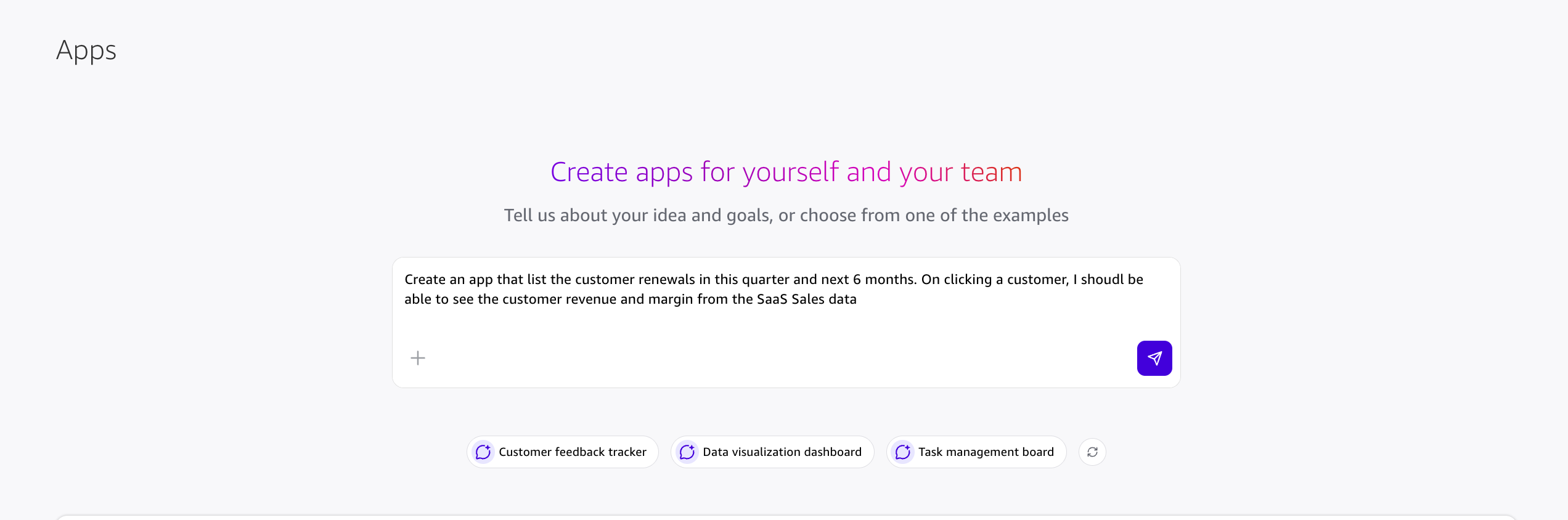
Figure 1: Entering a natural language request in the Amazon Quick Apps prompt box
- The agent discovers the SaaS Sales dataset and the Customer Renewals dataset, writes the SQL, and asks you to approve each dataset by name. In this case, because two datasets were discovered, it asks for consent for each dataset separately.
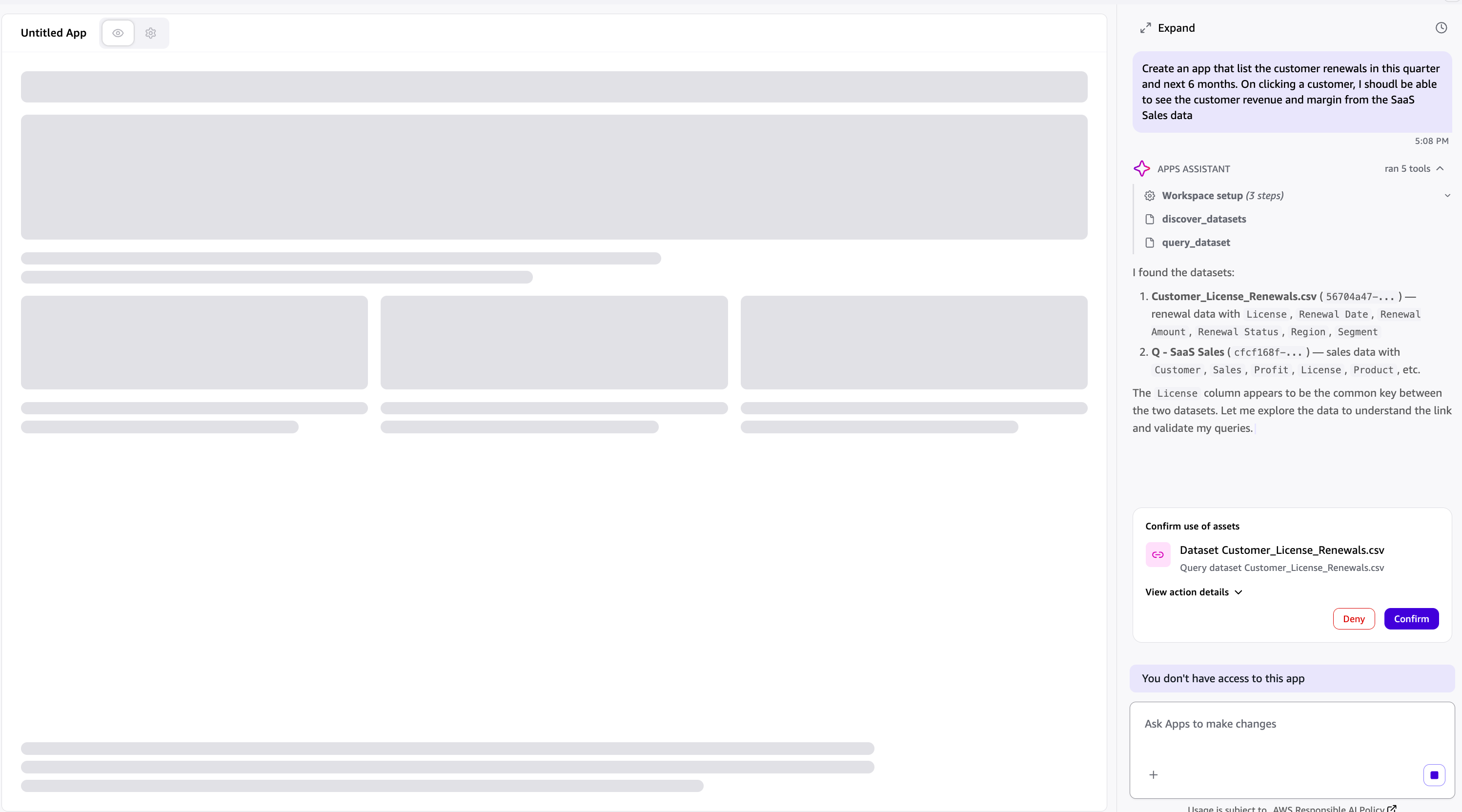
Figure 2: Approving each discovered dataset by name
- After you approve the datasets, the agent builds the app and loads the preview.
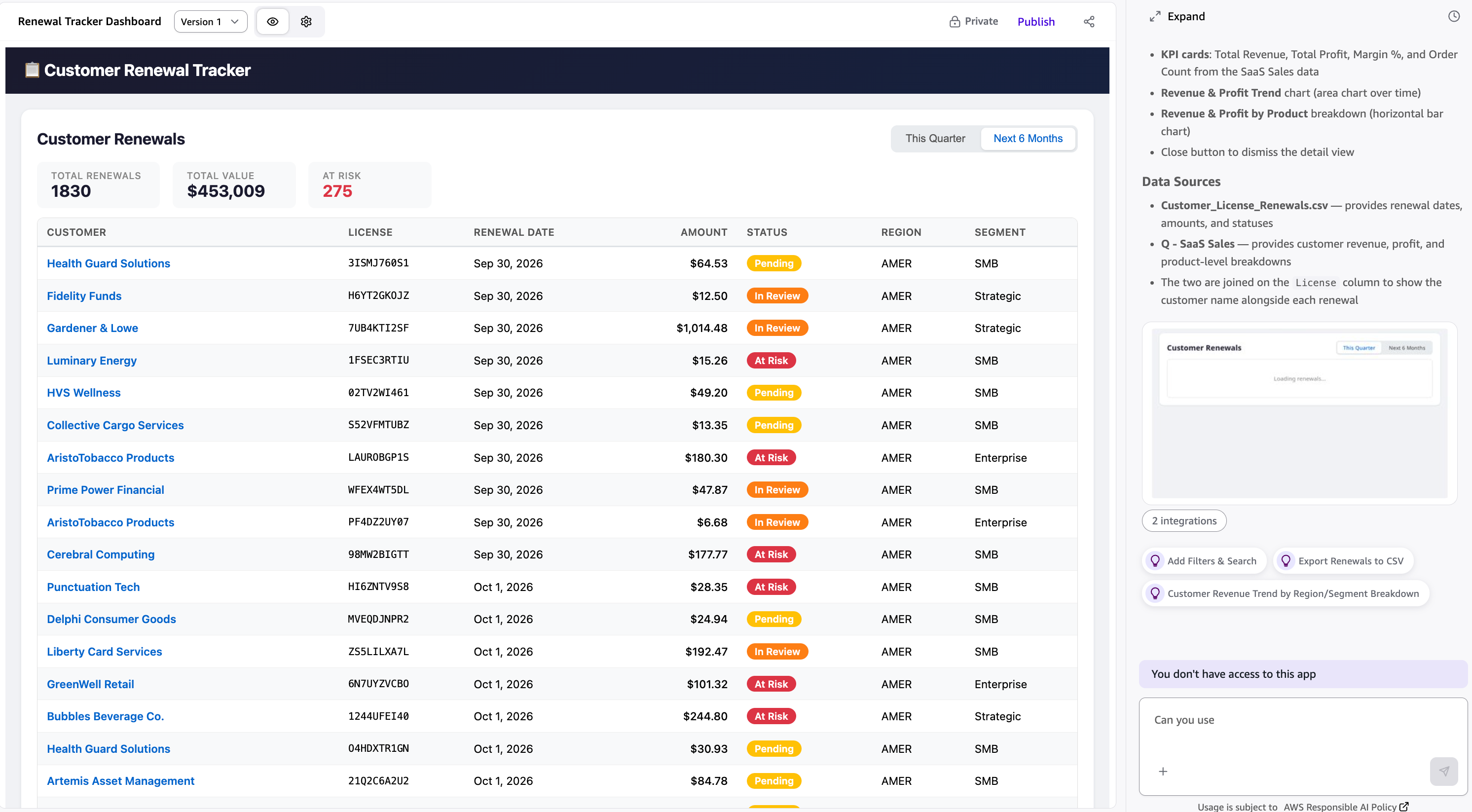
Figure 3: Preview of the app listing customer renewals
- With Quick Apps, you can iterate fast and validate each step before moving on to the next feature. In this case, the sales leader builds a complete workflow that lists renewals with key filters. When you choose a deal, the revenue for that deal appears, and you can send an email to the customer about the deal.
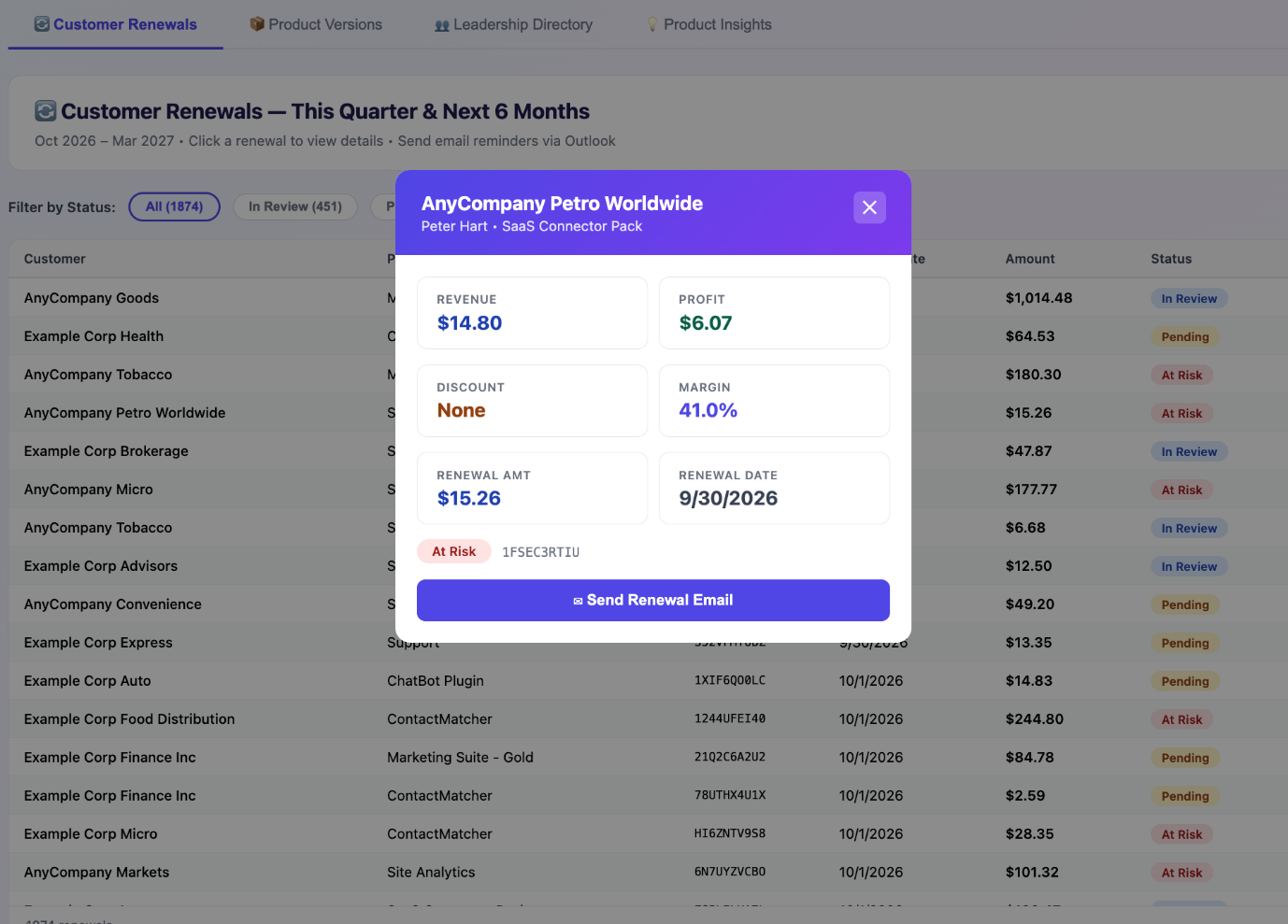
Figure 4: The renewals workflow with filters and a per-deal revenue pop-up
- Add more features (optional).
- Now the sales leader wants to make sure the decision on the deal aligns with the product strategy. Using simple prompts, they connect the enterprise product strategy document with enterprise data to analyze the deal before deciding. The following image shows how the SaaS Sales revenue dataset and the product strategy from the enterprise content come together in a single analysis. The following is a sample prompt:“Can we have an AI inference on overall customer data in the dataset and product strategy and provide an AI summary of whether we should proceed with the deal, provide an additional discount, and so on in the overlay. You can make the pop-up bigger.”
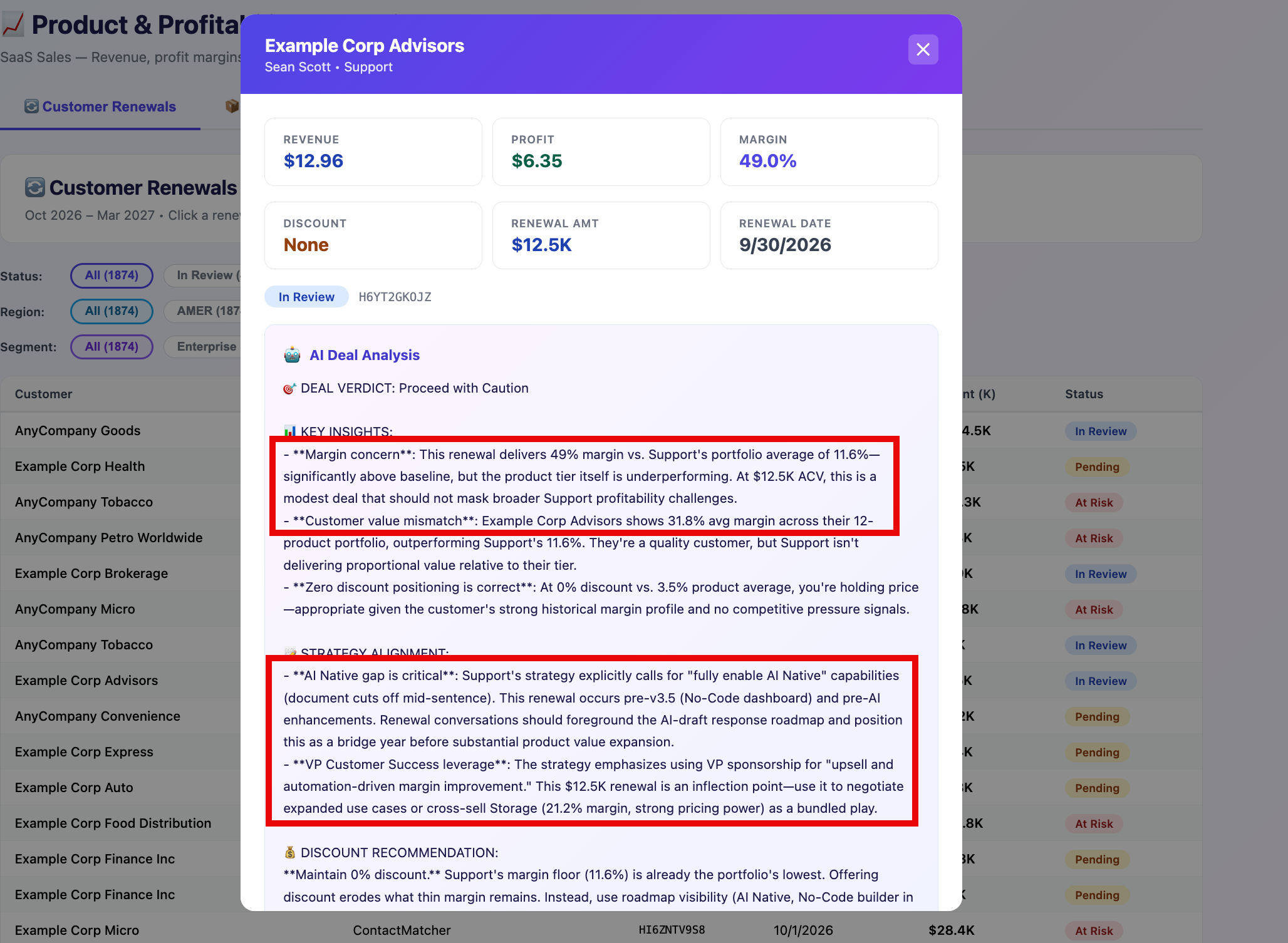
Figure 5: AI summary overlay combining revenue data and product strategy
By the time the app is complete, the sales leader has combined all enterprise content, data, and connectors with proper security in the app. To see all the integrations, choose the ellipses in the top right, and then choose Manage integrations. The following pop-up displays all the integrations the app uses:
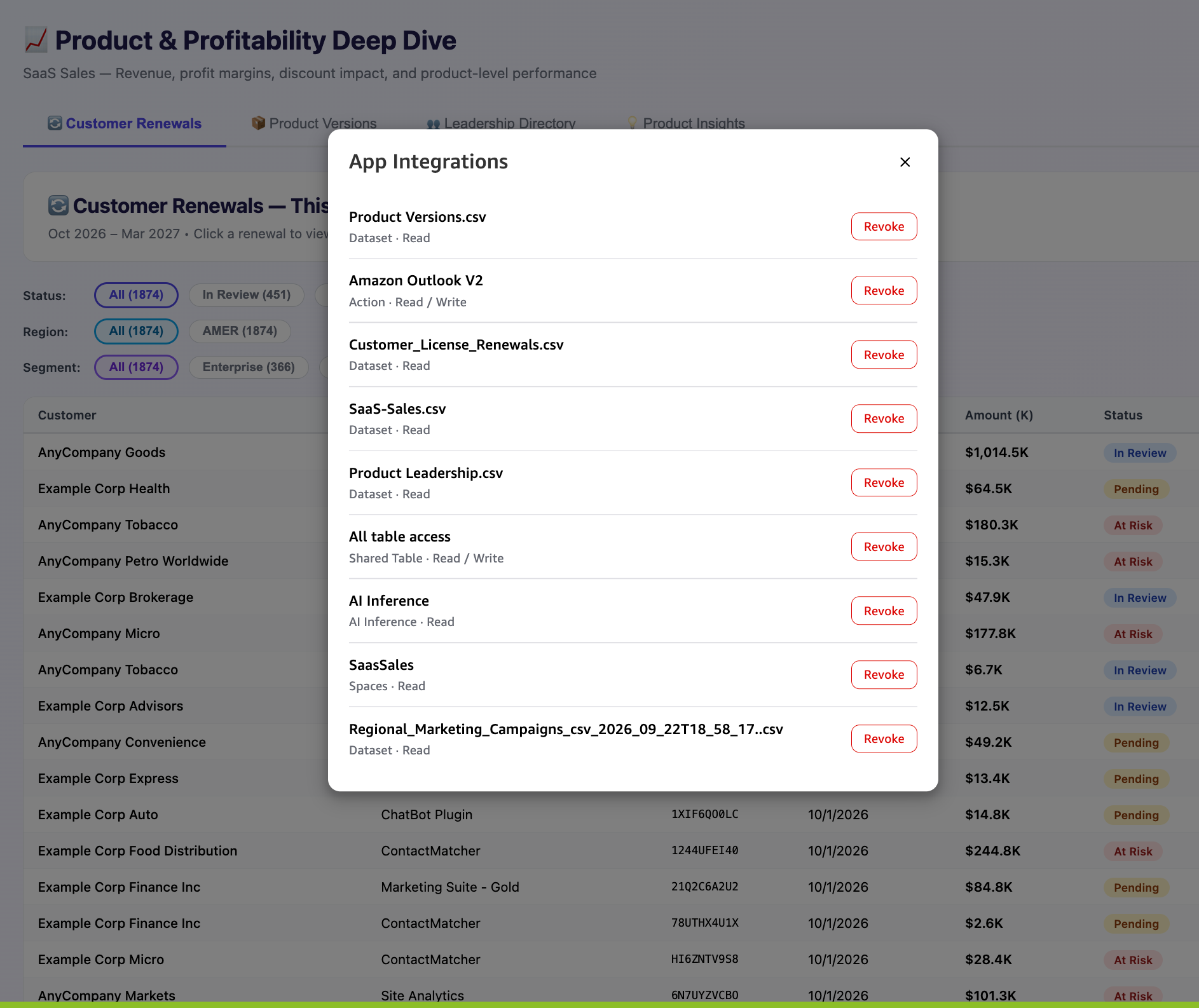
Figure 6: The Manage integrations pop-up listing every integration the app uses
Publish and share
After the sales leader is satisfied with the app, they can share it with others on the team. Choose Publish, and then share the app with viewer access to Quick users or groups.
View the app
When accessing the app for the first time, the viewer is prompted to provide consent for the app to access the datasets, as shown in the following image.
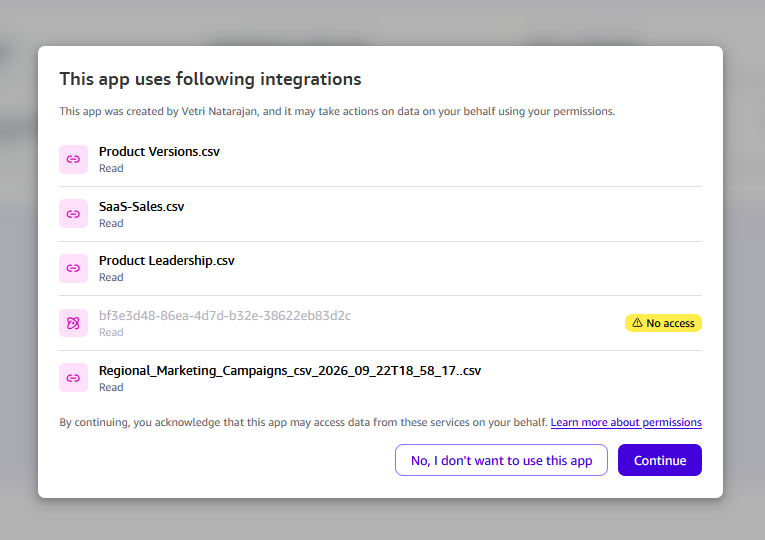
Figure 7: First-time consent prompt shown to a viewer
Each user sees the same app with data filtered based on the RLS and CLS rules. As the following images show, two regional sales managers with access to different regions (EMEA and AMER) see completely different data.
The regional sales manager for AMER sees the following view, which displays only the AMER region data:
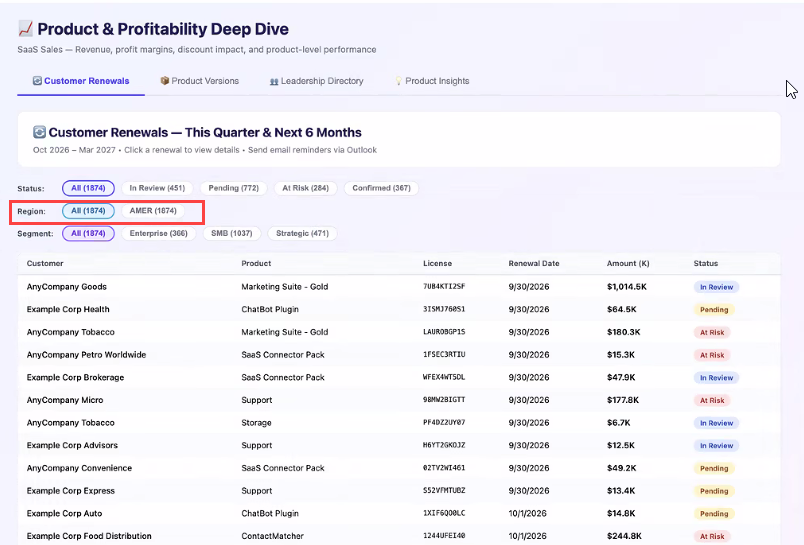
Figure 8: The app filtered to AMER region data for the AMER sales manager
The regional sales manager for EMEA and AMER sees the following view, which displays data for both regions:
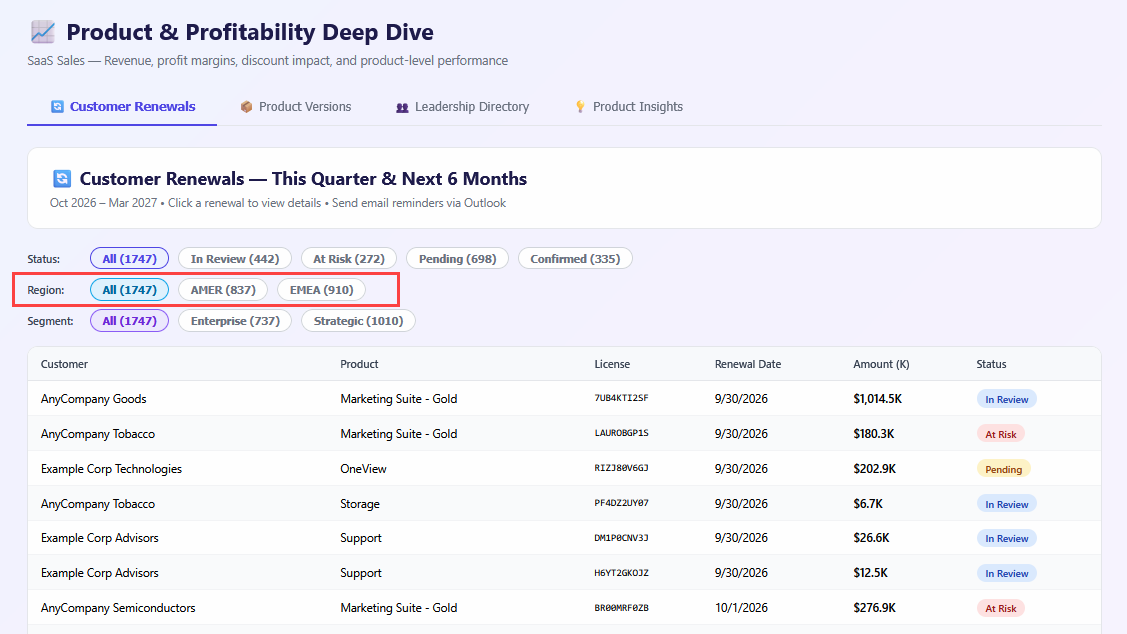
Figure 9: The app showing both EMEA and AMER data for a manager with access to both regions
The following image shows the error users encounter when they lack access to the underlying datasets.
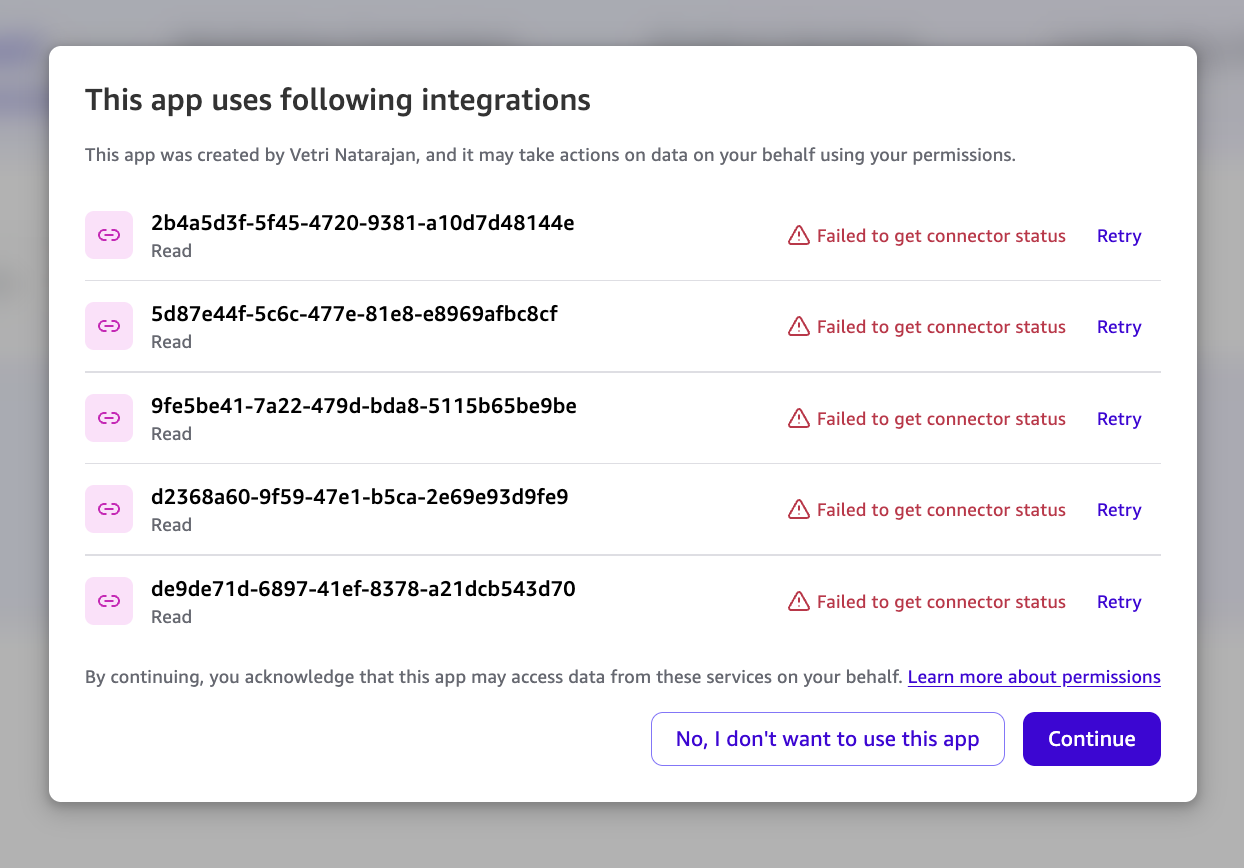
Figure 10: Access error shown when a user lacks permissions on the underlying datasets
With the build and view workflows covered, let’s look at the operational considerations you should be aware of.
Things to know
Here are some important considerations to keep in mind when using Live Data in Apps.
- Because queries run live, the app always shows the most current data in the dataset. If the dataset uses SPICE, refreshing the dataset updates the data shown in the app. If the dataset uses Direct Query, no refresh is required.
- Query and result-size guardrails are in place. If a query returns more data than the transport can carry, the app surfaces a clear “narrow the query” message rather than delivering truncated or incomplete data. Modify the prompt to get aggregated data, or prompt it to implement pagination.
- Similar to spaces and connectors, you must give one-time consent for Quick to use specific datasets in apps on your behalf.
- SPICE datasets or Direct Query datasets from the same data source can be used in a single app. Direct Query datasets from different sources cannot be used in the same app. For more information, see data sources that support Direct Query in apps.
- Renaming or removing columns requires rebuilding queries in the app. Edit the app with the updated information.
- The builder has row limitations. During the build and row-retrieval process, there’s an initial row limit on data retrieval. You must observe this limit and advise the building agent to retrieve all data in the app on load, in multiple paginated calls to the datasets. For more details, see the documentation.
- During dataset discovery, the agent pulls in the relevant columns from your data. If it misses a column, you can specify it directly in the app prompt.
- The app understands dataset columns based on the initial data it receives. If the builder’s row-level security (RLS) returns no data, the app cannot build with that dataset. Work with the app owner or your security team to get row-level access to the dataset.
- If the agent doesn’t discover the dataset you want, narrow your search or provide the dataset name or ID to surface the right results.
Get started
Here’s how to start building and sharing live-data apps today.
- Try it now: Open Amazon Quick Apps and build an app over one of your governed Quick Sight datasets. Describe what you want in plain language and let the agent handle the SQL.
- Read the docs: Visit the Amazon Quick documentation for detailed setup guides, API references, and best practices for Live Data in Apps.
- Share feedback: We want to hear how Live Data in Apps works for your team. Use the in-product feedback mechanism or reach out to your AWS team.
Conclusion
With Live Data in Apps, an AI-built Quick app can serve live, governed data instead of a build-time snapshot. The agent discovers and validates SQL against your Quick Sight datasets while building the app. The published app re-runs that SQL for each reader, executing as that reader so RLS and CLS apply per person. Behind a per-reader consent gate, the backend re-verifies on every query.
Data authority stays in one place. The Quick Sight query engine enforces authorization against each viewer’s identity, so the app, frontend, and proxies never handle access decisions.
To get started, build a Quick app over your governed datasets and let readers explore live data with their own permissions applied. For more on Quick Apps and dataset integration, see the Amazon Quick documentation.
