

Picture this: a compliance officer needs a specific clause during an audit, an attorney needs contract terms while a client waits on the phone, or a finance analyst needs numbers from last quarter’s report before a meeting that starts in 10 minutes. In each case, waiting for a scheduled job to finish is not practical. You need on-demand access to the text inside your PDFs.
In this post, you’ll build a server that extracts text from PDF files in Amazon S3 in real time. This protocol-based approach provides programmatic document access. You’ll walk through the architecture, set up the server, and run interactive document queries. Along the way, you’ll compare this approach with Amazon Textract so you can decide which tool fits your workload.
We built this solution after working with several teams who shared the same frustration: their documents lived in Amazon S3, but getting text out of them on demand meant either writing custom scripts or waiting on batch pipelines. This MCP server approach sits in between, giving you interactive access with minimal setup. Interactive PDF text extraction from Amazon S3 gives you real-time answers from your documents without batch pipelines or heavy infrastructure.
This MCP-based option works well for text-based PDFs in development and proof of concept settings. For complex document processing like optical character recognition (OCR), form extraction, and layout analysis, Amazon Textract remains the recommended choice.
Who benefits from this approach
This solution fits several common roles. If these scenarios sound like your day-to-day, read on.
Compliance and legal teams: During a time-sensitive review, you need to locate a specific clause buried in a 200-page policy document or contract. Searching manually takes too long. With this solution, you ask a question in natural language and get the relevant passage back in seconds.
Financial services teams: During an audit session, you need immediate access to the exact wording of an internal risk policy or regulatory filing. This solution lets you pull that information directly from your Amazon S3 document repository without leaving your terminal.
Executive teams: During strategic planning meetings, you can query a PDF on the spot when someone asks about a data point from last quarter’s earnings report. No flipping through printed copies or waiting for someone to look it up after the meeting.
These scenarios share a few common traits: they involve real-time information needs where batch processing is too slow, text-based PDF documents with standard formatting, cost sensitivity in development and proof of concept environments, and integration requirements with existing AWS workflows and tooling.
Where this approach fits alongside Amazon Textract
Amazon Textract is a fully managed AWS AI service purpose-built for document processing at scale. It handles scanned pages, handwriting, and multi-column layouts. Choose Amazon Textract when you need OCR for scanned documents, advanced form and table extraction, complex layout analysis, production-scale batch processing with service level agreement (SLA) requirements, or compliance features and enterprise support.
The MCP-based approach addresses a complementary scenario: giving an AI assistant interactive, on-demand access to text already encoded inside PDFs. Choose this pattern when your documents are text-based PDFs (no OCR required), your workflow is interactive rather than batch, you are working in development or proof of concept environments, and you want minimal infrastructure between the AI assistant and the source document. For everything else, including any document processing that benefits from OCR or structured extraction, route the work to Amazon Textract.
How the solution works
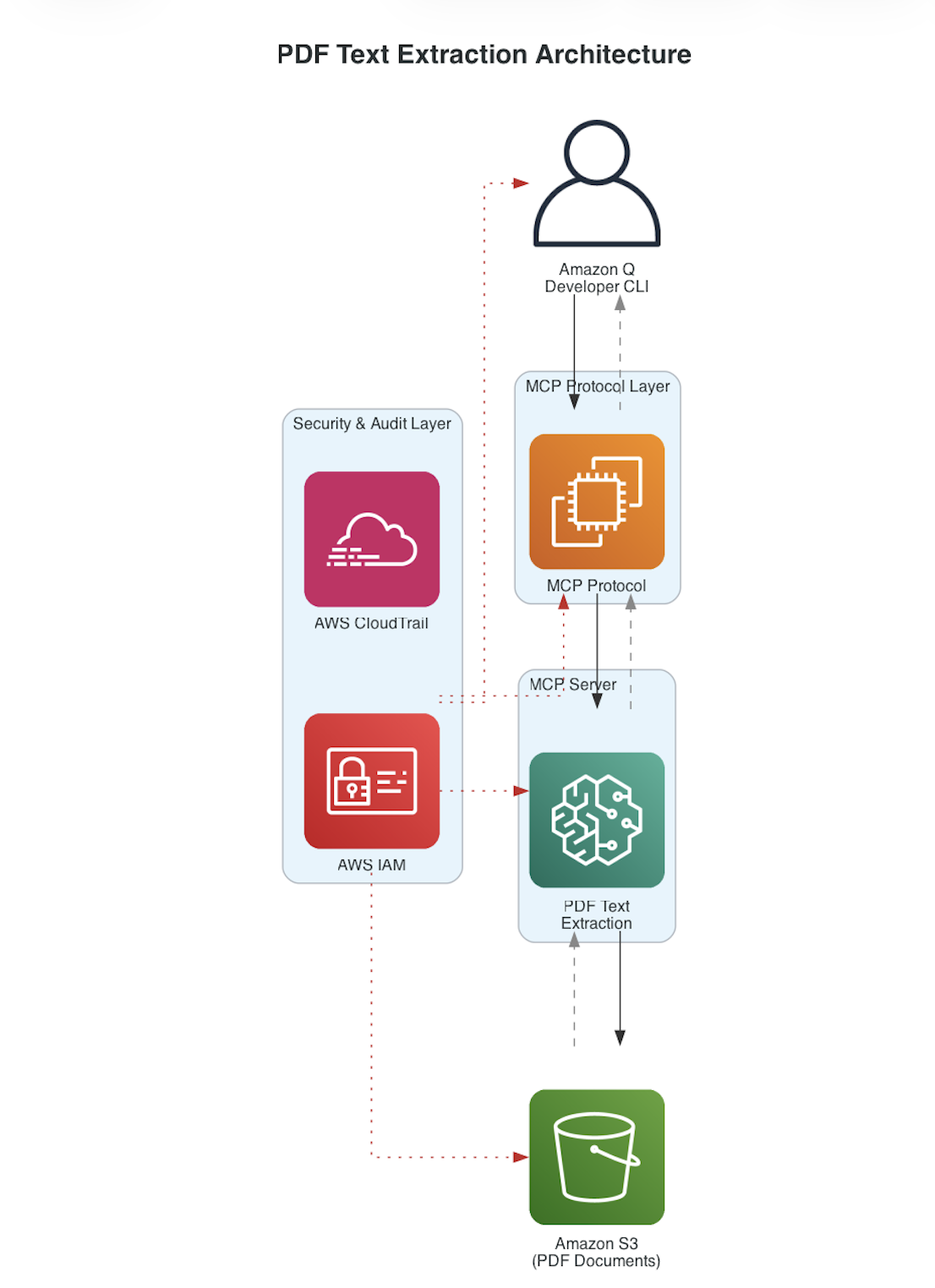
With this solution, you connect your AI assistant directly to your PDF documents in Amazon S3 and can get answers quickly. Under the hood, the solution uses the Model Context Protocol (MCP), an open standard that provides a structured way to access external data sources. MCP acts as a communication layer between your application and your data. The architecture has four components: a command-line interface as the user interface, the MCP layer for communication, a custom MCP server for PDF processing, and Amazon S3 for document storage, secured by AWS Identity and Access Management (AWS IAM).
Cost comparison
Choose the approach that fits your budget and requirements. For approximately 10,000 text-based PDF pages per month in a proof of concept environment, here is how the two approaches compare:
These two figures are price points for different feature sets and should not be read as a head-to-head price comparison. Use them to pick the right tool for the workload, not to optimize purely on dollars. If your workload involves scanned documents, forms, tables, complex layouts, or production SLAs, Amazon Textract is the appropriate choice and the additional capabilities are reflected in its price.
Amazon Textract scope: page-level processing, OCR-ready, form and table extraction, layout understanding, enterprise SLAs
Indicative monthly cost: Amazon Textract processing approximately $15, Amazon S3 storage $2, AWS Lambda compute $1, and large language model (LLM) token processing approximately $5 to $10, for a total of approximately $23 to $28.
MCP server scope: direct text extraction from PDFs whose text is already encoded; no managed processing service involved
Indicative monthly cost: Amazon S3 storage $2 and data transfer $0.50, for a total of approximately $2.50.
All cost figures are illustrative and may change. Refer to the official AWS pricing pages for current rates.
Architecture overview
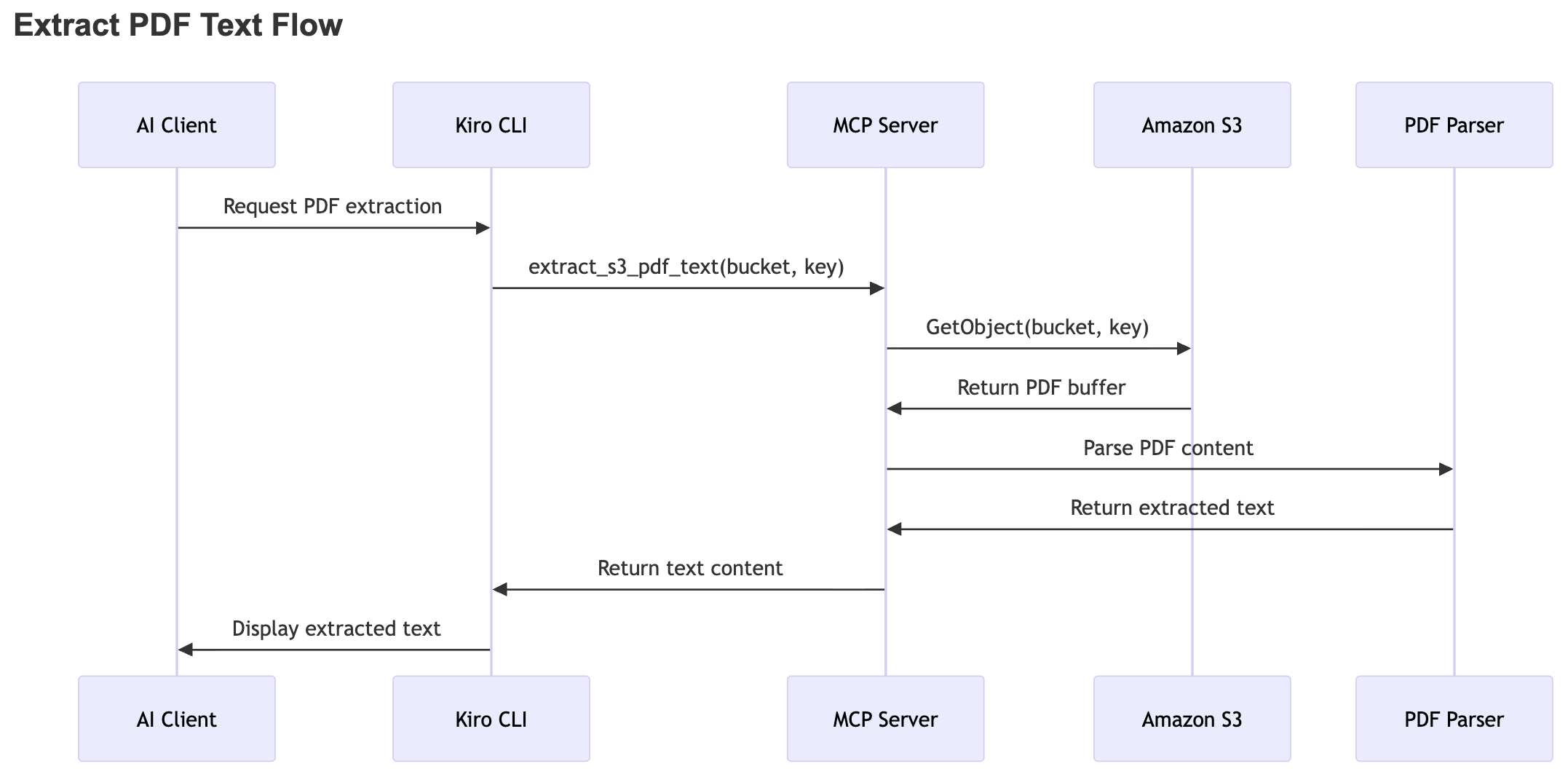
The following sequence diagram illustrates the end-to-end workflow for extracting text from a PDF stored in Amazon S3. The process begins when the AI client initiates a request for PDF extraction through the CLI. The system forwards this request to the MCP server, which retrieves the PDF file from Amazon S3 using the provided bucket and object key.
After the MCP server fetches the PDF, it passes the file to a PDF parsing component. The component processes the document and extracts the textual content. The MCP server then returns the extracted text to the client, and the client displays it to the user.
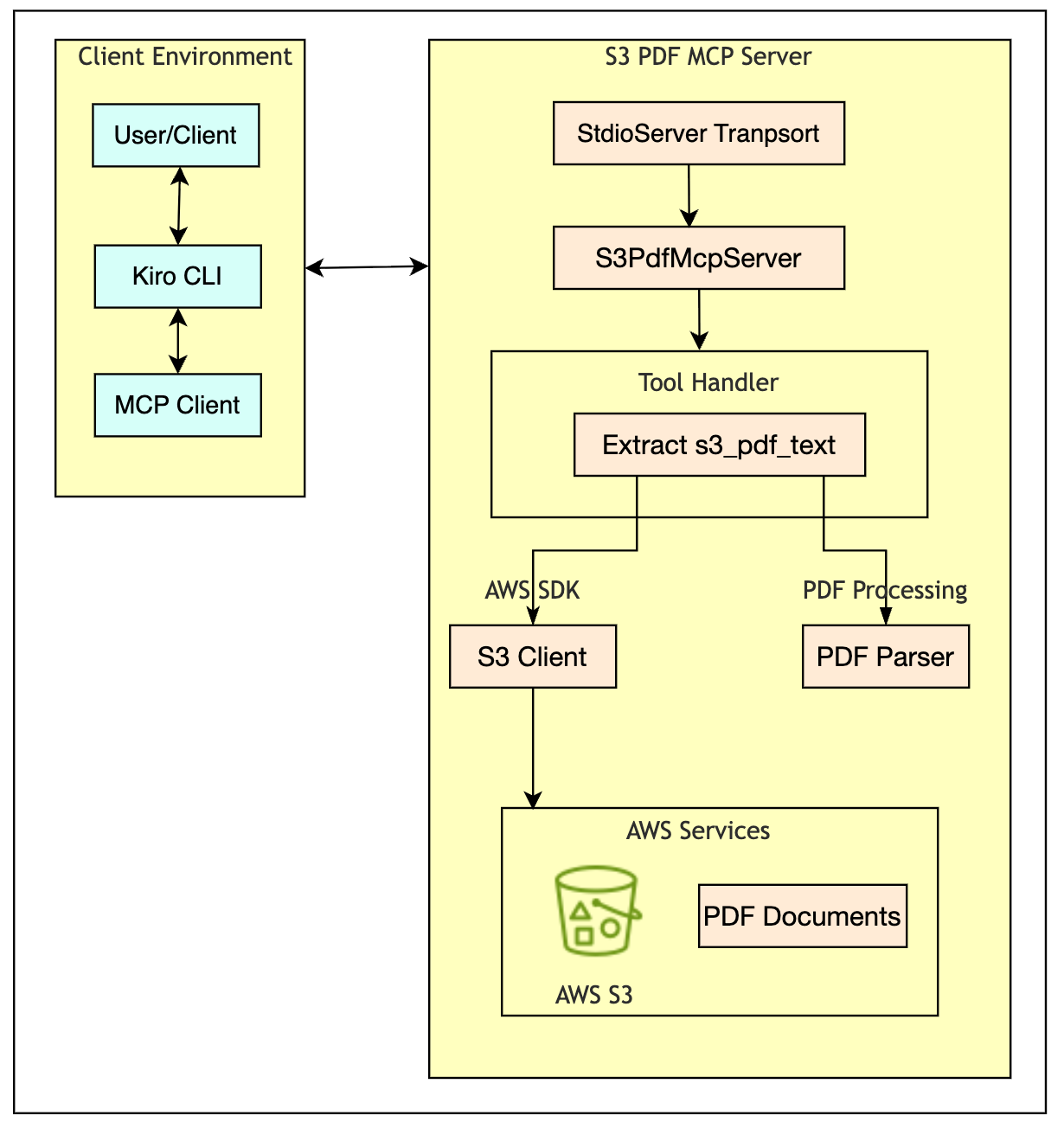
Step-by-step implementation
Follow these steps to set up and configure the PDF text extraction solution. Begin by confirming you have the required prerequisites in place.
Prerequisites
Before you begin, confirm that you have the following items ready. You’ll also need basic familiarity with Python programming and AWS services.
- An AWS account with Amazon S3 read permissions.
- Python 3.10 or later installed.
- AWS Command Line Interface (AWS CLI) configured with valid credentials.
- Kiro CLI installed.
Installation
This section guides you through installing the MCP server and its dependencies. The process involves creating a Python virtual environment, installing the required packages, and creating the server file. Follow these steps in order. Run each command in your terminal.
Before you start, you need:
- Python 3.10 or newer installed on your machine.
- The Kiro CLI installed and logged in.
- AWS credentials set up on your machine (run
aws configureif you haven’t). - An S3 bucket that contains at least one PDF file.
Step 1 — Create a folder for the project
Run these two commands in your terminal:
Step 2 — Navigate to the project folder
Run this command:
Step 3 — Create a Python virtual environment
Run this command:
Step 4 — Activate the virtual environment
Run this command:
After this, your terminal prompt will show (venv) at the start. Keep this terminal open. You need to stay in this virtual environment for the next steps.
Step 5 — Install the required Python packages
Run this one command:
Wait for it to finish. It should end with “Successfully installed…”.
Step 6 — Create the server file
Inside the ~/s3-pdf-extractor folder, create a new file named exactly:
Paste the following code into that file and save it:
Step 7 — Test that the server starts
In your terminal (still inside the s3-pdf-extractor folder with the venv active), run:
The terminal will appear to “pause” with no output. That is correct. It means the server is running and waiting for requests. Press Ctrl+C to stop it.
If you see an error instead, re-check Steps 2 and 3.
Step 8 — Locate or create the Kiro CLI configuration file
Kiro CLI uses a JSON configuration file to know which MCP servers are available. You need to add your server to this file.
The Kiro CLI MCP configuration file is located at:
If this file does not exist, create it by running these commands in your terminal:
Step 9 — Add the MCP server configuration
Paste the following JSON into the file. Replace /path/to/s3_pdf_extractor.py with the actual path from Step 1 (for example, ~/s3-pdf-extractor/s3_pdf_extractor.py):
To get the full absolute path, run echo ~/s3-pdf-extractor/s3_pdf_extractor.py in your terminal and use that output in the args field.
Step 10 — Save the configuration file
Press Ctrl+O, then press Enter to save the file.
Step 11 — Close the file editor
Press Ctrl+X to exit nano.
Step 12 — Restart Kiro CLI
Restart Kiro CLI to load the new configuration. Close and reopen Kiro CLI, or run:
Step 13 — Verify the MCP server connection
Verify the connection by running a test extraction in Kiro CLI:
Security considerations
Security is integrated from the beginning, not added as an afterthought. Here is how the solution handles it:
- IAM integration: The solution uses your existing AWS credentials. You do not need to create or manage separate API keys.
- Least privilege access: You grant only Amazon S3 read permissions, scoped to the specific buckets that contain your PDF documents. Nothing more.
- Temporary storage: The server deletes downloaded files automatically after it completes processing. No PDF data lingers on the local file system.
- No data persistence: Text extraction occurs on demand without storing results.
- Audit trail: AWS CloudTrail logs Amazon S3 access requests for your account.
Performance and limitations
Here is what to expect in terms of performance:
- The server processes documents in real time. For a typical 50-page text-based PDF, results are generally available in a few seconds, making it practical for interactive workflows where you ask follow-up questions.
- Processing time scales linearly with document size. A 10-page document processes roughly 5 times faster than a 50-page one.
- Memory usage is proportional to document size. For most text-based PDFs under 100 pages, memory consumption stays well within typical development machine limits.
This approach has clear limits. Know them before you commit:
- Text-based PDFs only. If your documents are scanned images or photographs of paper, the server cannot read them. Amazon Textract handles those cases natively with OCR.
- No OCR capability. The server reads embedded text from the PDF file format. It cannot interpret pixels in an image.
- Limited layout understanding. The server performs straightforward text extraction. It does not reconstruct tables, columns, or complex page layouts. Amazon Textract handles this natively.
- No form processing. If your PDFs contain fillable form fields or structured data, the server does not extract those elements. Amazon Textract handles this natively.
Real-world use cases
These capabilities translate directly into measurable outcomes across industries. Whether it’s legal teams retrieving contract clauses mid-call, compliance officers locating policy language during audits, or executives pulling earnings data in real time, the solution removes the friction of manual document search. The following examples show how different teams put it to work.
Legal services firm
A mid-sized legal firm adopted this solution for contract review. Their attorneys used to spend 15 to 20 minutes searching through PDF contracts to find specific indemnification clauses during client calls. That meant putting the client on hold or promising to call back later. Now they type a question into Kiro CLI and get the relevant passage in seconds. The firm reports that research time during client calls was significantly reduced.
Financial services compliance
A regional bank deployed the solution for regulatory examinations. During audits, compliance officers need to locate specific policy language quickly. Previously, they bookmarked key sections manually across dozens of PDF files, which was error-prone and hard to maintain as policies changed. With the MCP server connected to their S3 document repository, they now pull up the exact paragraph an examiner asks about in real time.
Corporate strategy team
An enterprise leadership team uses the solution during quarterly strategy meetings. When a board member asks about a specific metric from the previous quarter’s earnings report, the team queries the PDF on the spot instead of flipping through printed copies. This keeps discussions moving and grounded in actual data.
Scaling and enhancement options
This solution is a starting point. As your needs grow, you can extend it. Start with caching if your team accesses the same documents repeatedly. Consider batch processing when you need to handle hundreds of documents at once. Add vector search when keyword matching is no longer sufficient.
Specifically, you can extend the solution in these ways:
- Add caching with Amazon DynamoDB for frequently accessed documents.
- Implement batch processing with Amazon Simple Queue Service (Amazon SQS) for bulk operations.
- Integrate vector search with Amazon OpenSearch Service for semantic document discovery.
- Create hybrid workflows that route complex documents to Amazon Textract automatically.
- Add monitoring with Amazon CloudWatch to track usage patterns and error rates.
Cleanup
When you’re done testing or want to remove the solution, follow these steps to avoid unnecessary costs.
- Stop the MCP ServerPress Ctrl+C in the terminal where the server is running.
- Remove the MCP ConfigurationOpen your Kiro CLI MCP configuration file (
~/.kiro/settings/tools/mcp.json) and delete thes3-pdf-extractorentry. Save and close the file. - Delete the project filesRemove the project directory and all its contents:
Warning: This command permanently deletes all files in the directory without confirmation. Make sure you have saved any modifications before proceeding.
- Clean up S3 resources (optional)If you created test PDFs in Amazon S3 specifically for this walkthrough, delete the test files or the test bucket using the Amazon S3 console or the AWS CLI:
Only delete resources you created for testing.
- Review IAM permissions (optional)Navigate to the IAM console and remove any S3 read permissions added specifically for this solution. Keep permissions that other workflows depend on.
- Verify cleanupConfirm the directory no longer exists:
Expected output: No such file or directory
After cleanup, you will no longer incur S3 storage and data transfer charges for the resources you deleted. For detailed pricing information, see Amazon S3 Pricing. If you want to redeploy later, repeat the installation steps. All code and configuration examples remain in this document.
Conclusion
In this post, you built an MCP server that extracts text from PDF files in Amazon S3 in real time. You walked through the architecture, compared costs with Amazon Textract, and saw how 3 different teams put this approach to work. The pattern follows a clear approach: connect your AI assistant to your documents, keep the infrastructure minimal, and scale up only when the workload demands it.
In summary, the MCP server pattern is a focused, interactive complement to Amazon Textract. Use it when an AI assistant needs to read text-based PDFs in real time. When your needs include OCR, forms, tables, or production-scale processing, Amazon Textract is the AWS service designed for that work, and the two approaches fit cleanly together. This is exactly the pattern shown in the hybrid workflow option earlier in this post.
Next steps:
- Evaluate your use case against the criteria in the “Where this approach fits alongside Amazon Textract” section.
- Deploy the solution in your development environment by following the Installation section in this post. Test with 5 to 10 representative documents to establish baseline performance.
- Explore Amazon Textract for OCR capabilities, or learn more about Kiro CLI integration as your requirements evolve.
- If you try this solution or adapt it for your own use case, we’d love to hear about it in the comments.
To learn more, explore the following resources:
- Amazon Textract.
- Amazon Comprehend.
- Amazon S3.
- Kiro CLI.
- AWS Identity and Access Management (IAM).
- AWS CloudTrail.
- Model Context Protocol (MCP).