
Enterprises often struggle to onboard new team members at scale. Human resources (HR) teams spend time on manual tasks that delay productivity, such as processing documents to answering repeated questions about benefits and policies. For organizations with many new hires, these steps make it harder to keep onboarding consistent and compliant. Organizations lose substantial amounts of time per day per new hire during onboarding, with new employees typically reaching only a fraction of their potential productivity in the first month. Amazon Quick is a fully managed agentic service. With it, HR departments can create no-code onboarding agents that answer new-hire questions, track compliance across existing tools, and clear tickets automatically so that new hires can ramp faster with less manual work.
In this post, we walk through building a custom HR onboarding agent with Quick. We show how to configure an agent that understands your organization’s processes, connects to your HR systems, and automates common tasks, such as answering new-hire questions and tracking document completion. You can adapt this solution to your onboarding workflow so new hires get consistent answers and HR teams reclaim time previously spent on routine inquiries.
Key components of Amazon Quick
Quick transforms employee onboarding from scattered documents and manual processes into an intelligent, connected experience through the following integrated components:
- Knowledge bases – Indexed content from external sources like SharePoint, OneDrive, and Confluence, as well as internal content including internal websites, file uploads, and Amazon Simple Storage Service (Amazon S3) buckets. A knowledge base serves as a single searchable repository, so new hires get comprehensive answers from multiple sources instead of searching through disconnected files.
- Actions (action connectors) – Secure, permission-aware integrations that enable AI agents to take real action in HR onboarding scenarios—creating ServiceNow IT equipment requests, sending Slack welcome messages to team channels, or updating onboarding workflows in project management tools—rather than just providing links to forms.
- Spaces – Focused environments that organize team-centered assets including files, business intelligence artifacts (such as dashboards and topics), knowledge bases, and actions with sharing controls for team collaboration.
Quick can help HR teams create specialized onboarding assistants that combine knowledge access with automated tasks. You can use the built-in system agent (“My assistant”) for immediate help or create custom chat agents tailored to your organization’s specific onboarding needs, such as a dedicated HR onboarding assistant that knows your company policies and can automatically handle common requests like IT setup or benefits enrollment.
Solution overview
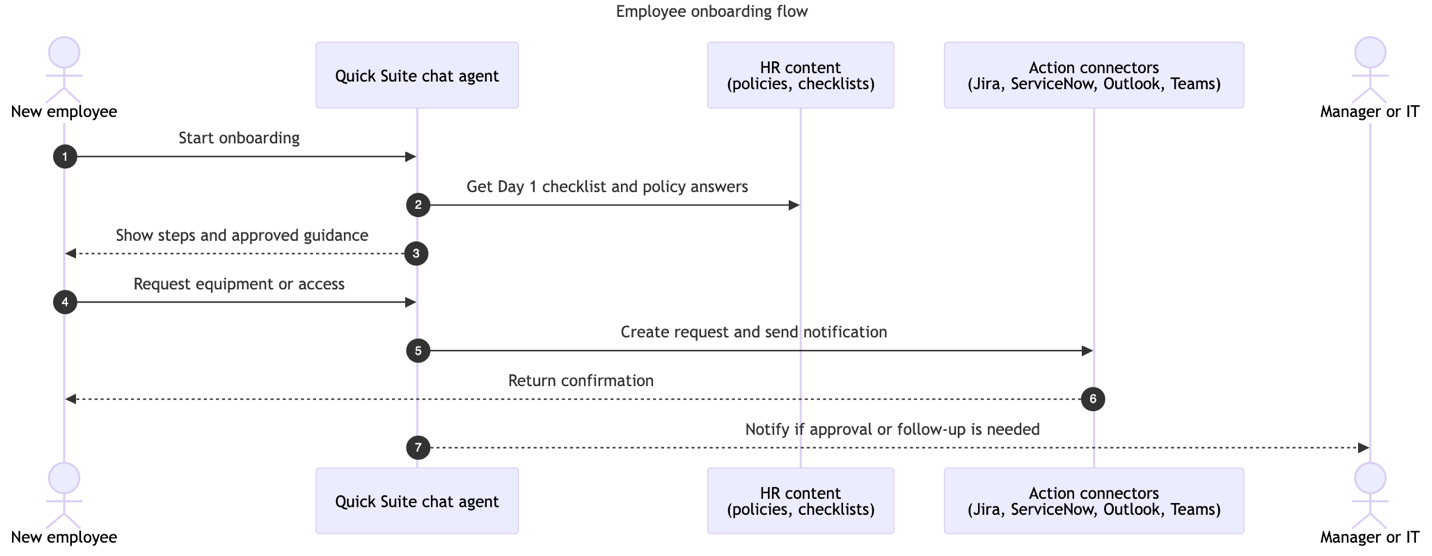
This solution uses a custom chat agent in Quick for employee onboarding. Without an agent, HR might switch between wikis, SharePoint, ticketing, chat, and email to coordinate each step. With Quick, the agent presents the latest checklist from the HR space, answers with approved language, opens requests through actions, notifies stakeholders, and points the employee to the next step. Confirmations and status remain in the HR tools, and the agent reads or updates them through actions or flows. The following diagram illustrates the solution architecture.
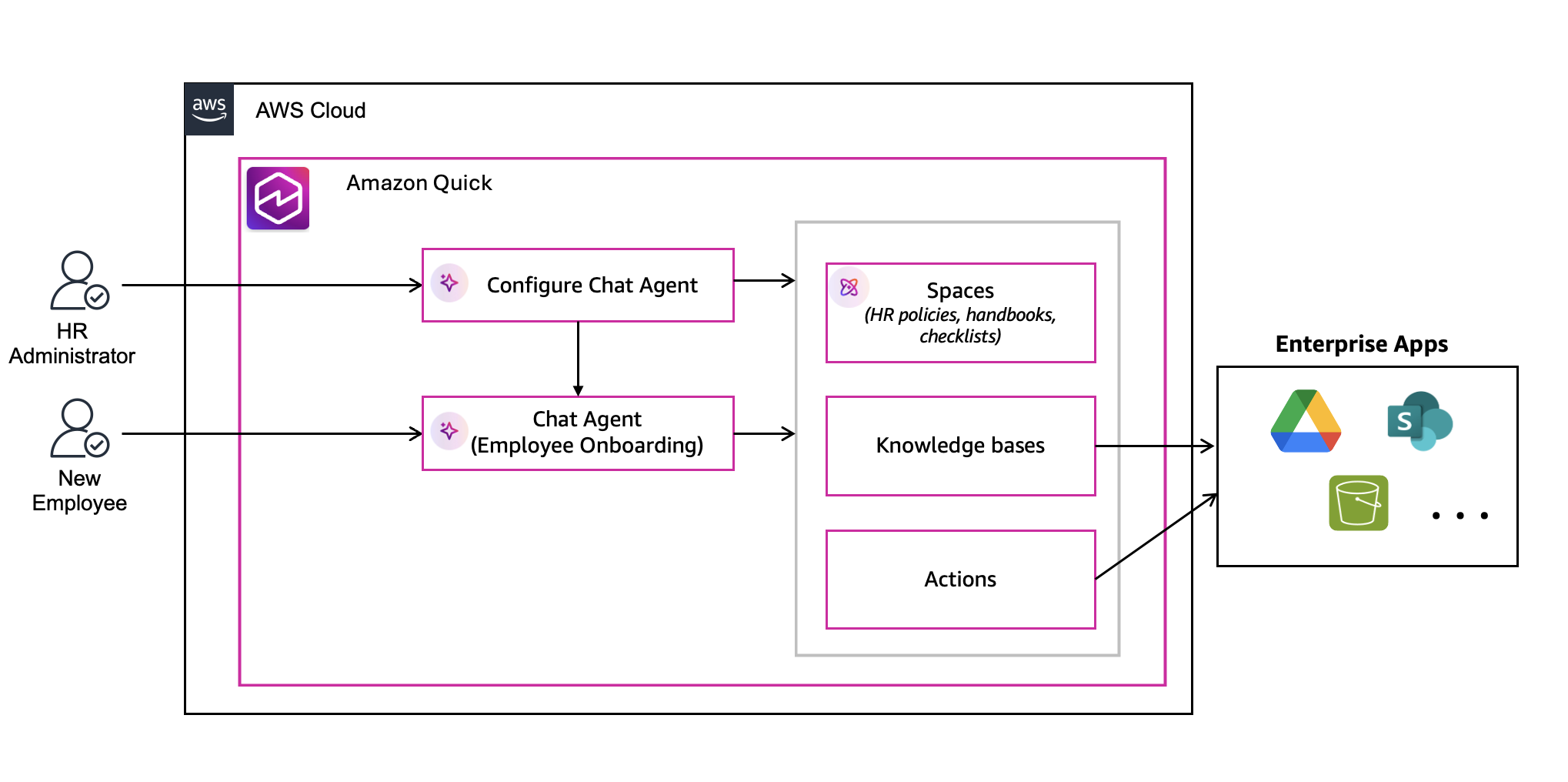
Implementing the solution consists of the following high-level steps:
- Create the chat agent in Quick.
- Attach the HR space and link knowledge sources.
- Add actions.
- Test with real questions and tasks, then share with employees.
Quick provides two types of chat agents that facilitate this onboarding solution: the system chat agent (“My assistant”) and custom chat agents. The system chat agent (“My assistant”) – “My assistant” appears on the Amazon Quick console by default and helps users ask questions and complete tasks using resources they are allowed to access. Users can interact with the system agent in multiple ways:
- Ask general questions using the agent’s built-in knowledge by choosing General knowledge.
- Upload their own files directly in chat (up to 20 files per conversation) for analysis and questions.
- Control the conversation scope by choosing from three modes: All data & apps (searches across all accessible resources), General knowledge (uses only built-in knowledge), or Specific data & apps (targets particular spaces, dashboards, topics, knowledge bases, or actions). For example, a user might upload their employee handbook and ask, “What’s our remote work policy?” or select the HR space and ask, “How do I enroll in the health insurance plan?” The system agent is available immediately with no configuration required and adapts its responses based on the selected scope and available resources.
Custom agents help you build specialized assistants for your business needs. You configure behavior (purpose, tone, response format); attach spaces with dashboards, topics, and knowledge bases for grounded answers; and link action connectors so the agent can perform tasks in tools like Jira, Slack, ServiceNow, Salesforce, Outlook, or Teams. You can share custom agents with specific users or groups. Custom agents offer the following capabilities:
- Use case-specific responses – Define the agent’s persona and response style tailored to specific business workflows and requirements.
- Guidance through reference documents – Upload specific documents that serve as response templates for consistent messaging and process guides for following specific steps.
- Comprehensive data integration – Link spaces to the agent to give it access to different types of searchable content and knowledge sources, including dashboards for analytics, topics for structured datasets, knowledge bases for external, unstructured document repositories, and local files uploaded directly to the space for additional information. This helps the agent answer questions using different relevant data within the organization’s permission structure.
- Automated actions – Add action connectors so users can create Jira tickets, send Slack messages, update Salesforce, or open ServiceNow requests directly from chat.
- Collaboration – Test, refine, and share agents with teammates. Administrators can control who can create and customize agents through user subscriptions and custom permissions.
You can use the system chat agent for general assistance across Quick, or create a custom agent tailored to a workflow such as HR onboarding. In that case, you define instructions, attach the HR space or knowledge base, and enable actions for requests and notifications.
In the following sections, we walk through the steps to implement this solution using two personas: the HR administrator who sets up and shares the agent, and the employee who completes onboarding tasks with the agent.
Prerequisites
Before you begin, make sure you have completed the following steps:
- Create an AWS account. For more information, see Create an AWS account.
- Confirm you have access to Quick.
- At least one Amazon Quick Enterprise subscription to configure actions and create knowledge bases. Users who only use the shared agent can be on the Amazon Quick Professional subscription
- Go to Get started with Atlassian Cloud and create a free site, selecting both Confluence and Jira on the Free plan (up to 10 users).
- In Confluence, create an “HR Onboarding” space to store your HR content.
- In Jira, create a simple HR onboarding project that the agent can use for access or equipment requests in the Add actions section.
- Download the ZIP file from the HR onboarding workshop materials page.
- From the HR documents folder in the ZIP file, upload the following files into your HR Onboarding Confluence space:
employee_handbook.pdfleave_policy.pdfonboarding_checklist.pdfperformance_review_guidelines.pdfpublic_holidays.csv(optional, used later for reporting or analytics)
If your organization already uses a corporate Confluence site, you might not have permission to create spaces or upload sample files unless you request additional access from your Confluence administrator. To experience the value of Quick without waiting on admin changes, use a separate Atlassian Cloud site to follow this post.
Implementation Steps
This procedure uses two personas: the HR administrator who sets up and shares the agent, and the employee who completes onboarding tasks with the agent.
HR administrator
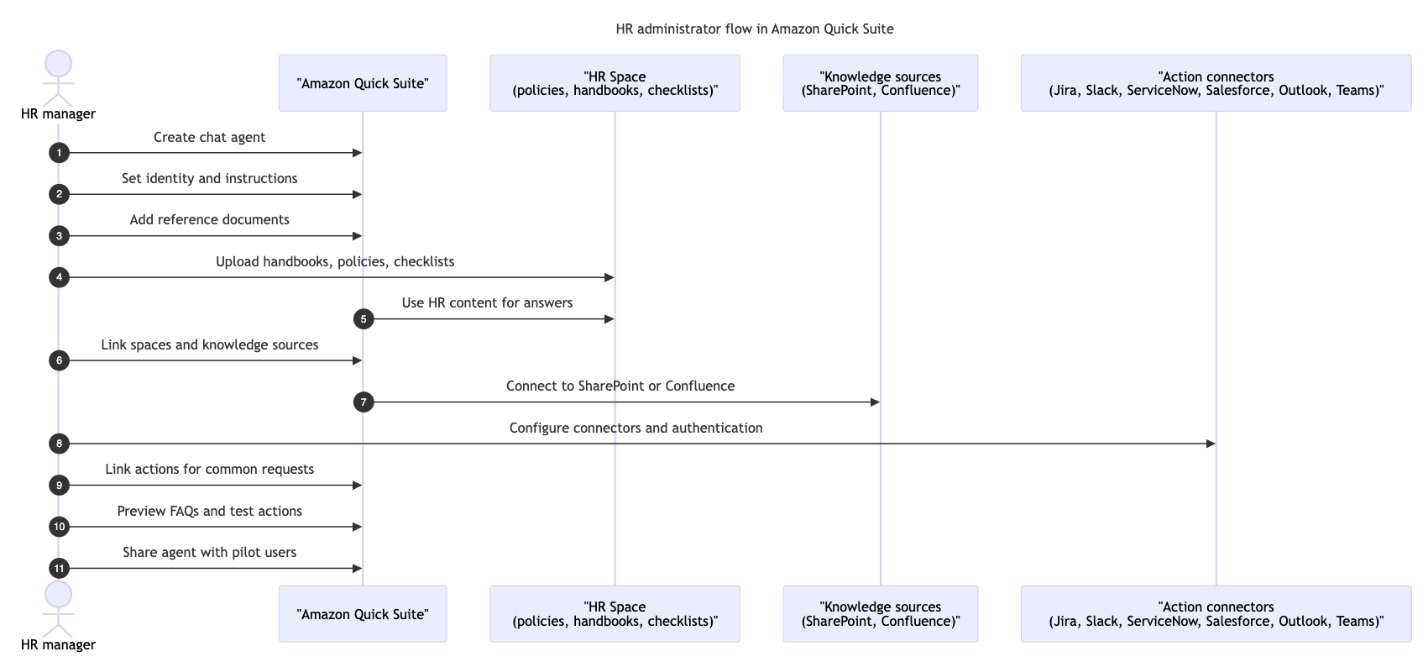
The following sequence diagram shows how the HR administrator creates, configures, and shares the HR onboarding agent in Quick.
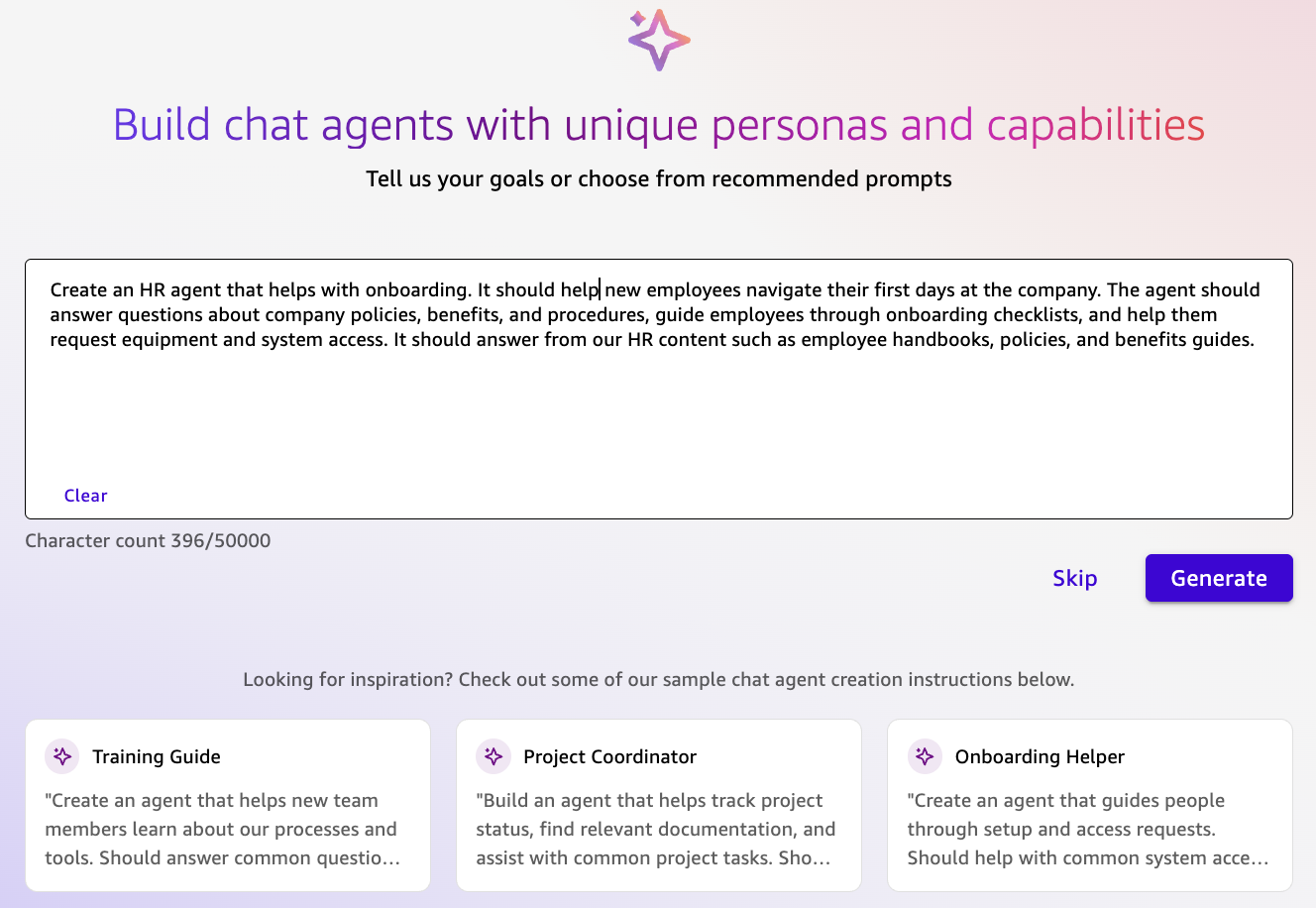
Create chat agent
First, you create the chat agent itself, which becomes the single place where new hires ask questions and get guided through onboarding:
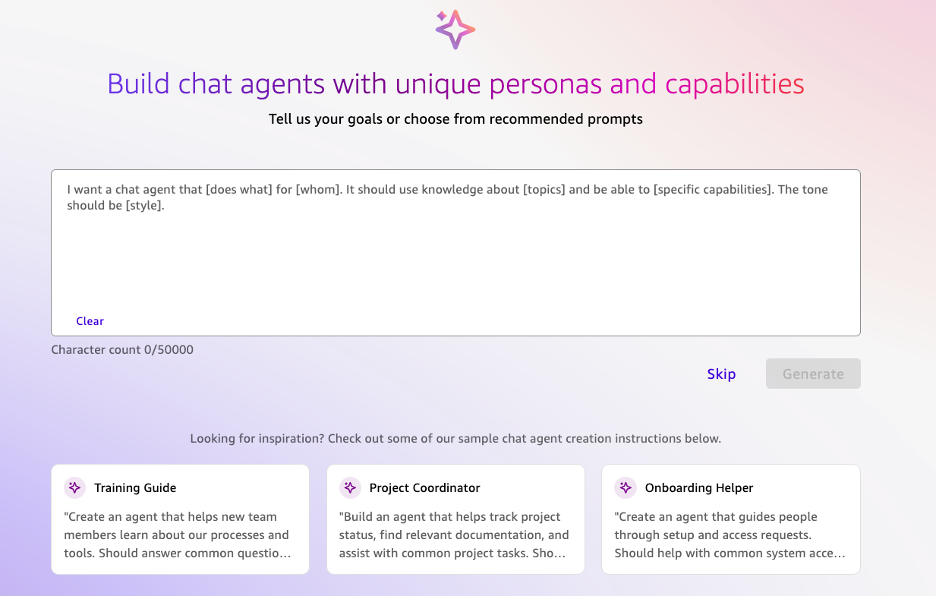
- On the Quick console, choose Chat agents in the navigation pane, then choose Create.
- Enter a simple natural language prompt describing what you want your agent to do (for example, “Help new employees with HR onboarding questions and equipment requests”).
Quick will automatically expand your prompt into a detailed persona and response instructions and scan your available resources to link relevant spaces and action connectors to the agent.
- Review the generated agent configuration and refine as needed, updating the preview to save your versions within the session.
- Choose Launch chat agent when you are satisfied.
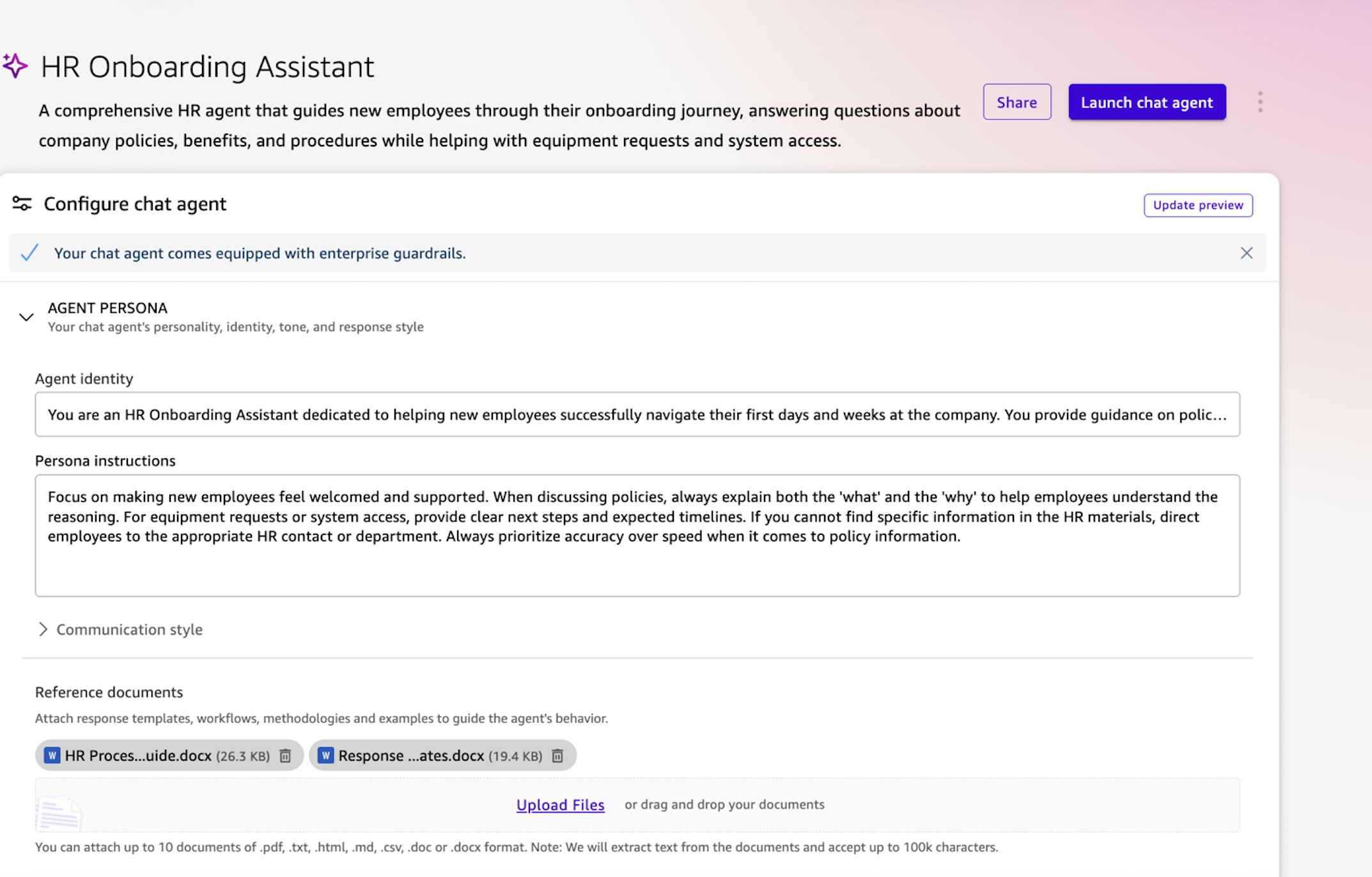
Configure behavior
Next, you shape how the agent should respond so its tone, scope, and guardrails match your HR policies and HR brand:
- Agent metadata – Update the agent’s name, description, welcome message, and starter prompts to help users discover and use the chat agent properly. These elements serve as the first impression and guide users on how to interact effectively with your HR assistant.
- Agent instructions – Review and update the automatically generated persona instructions, response format, tone, and length settings from the previous step. The system-generated inputs provide a solid foundation, but you can fine-tune to match your organization’s specific HR communication style and requirements.
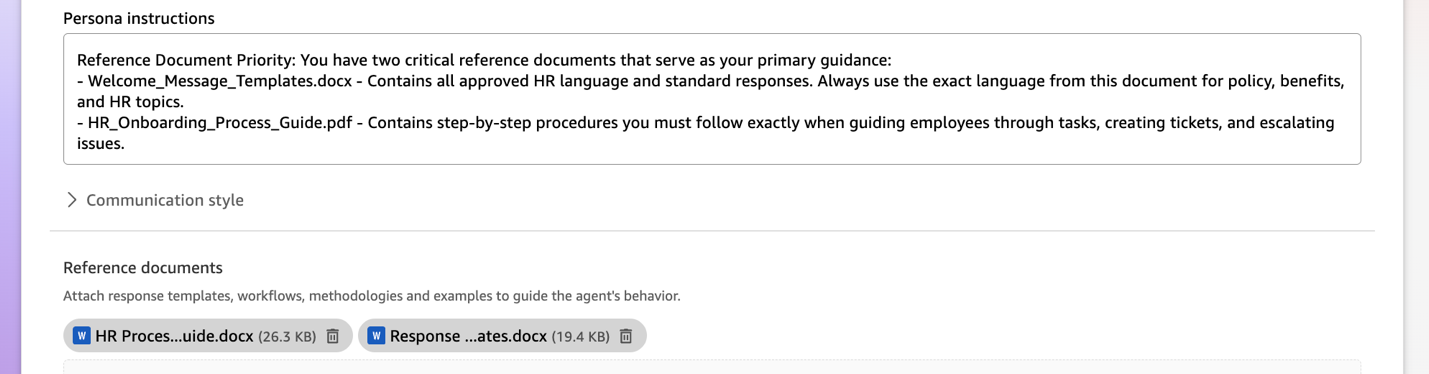
- Reference documents – Upload specific guidance documents that provide the highest priority instructions for agent behavior. These reference documents will be followed as prescribed while you can use the instruction fields to provide high-level guidance on behavior and goals.
Connect HR knowledge
Now you connect your HR knowledge sources so the agent answers from approved handbooks and policies instead of inventing its own language:
- Create or choose an existing HR space that holds handbooks, policies, and checklists. By configuring the agent’s knowledge scope to focus specifically on HR-related content, you make sure responses stay within appropriate boundaries and don’t access unrelated organizational data.
- Choose Upload files to upload files to the space, including:
- Employee handbooks and policy documents
- Benefits information and FAQ documents
- Training materials and guides
- Link knowledge sources such as SharePoint or a wiki.
- Link the configured space to your agent so it can access this approved searchable content for grounded responses.
Add actions
After the agent can answer questions, you add actions so it can also trigger work in your HR tools, such as tickets, requests, and notifications:
- Open the Actions card and choose Link actions.
- Select from available action connectors that you have already configured. For the HR onboarding use case, this could include tools such as Jira (to create and update tickets), ServiceNow (to manage incidents), or Microsoft Outlook (to send emails).
Only action connectors configured with the necessary OAuth details can be linked to the agent, so end-users can authenticate individually during their chat. Update your reference documents and persona instructions to specify when to invoke specific action connectors. For example: “When an employee requests equipment, use the ServiceNow connector to create a hardware request ticket,” or “For access requests, create a Jira ticket in the IT-Access project with priority set to ‘Normal.’”
Customize, test, and share
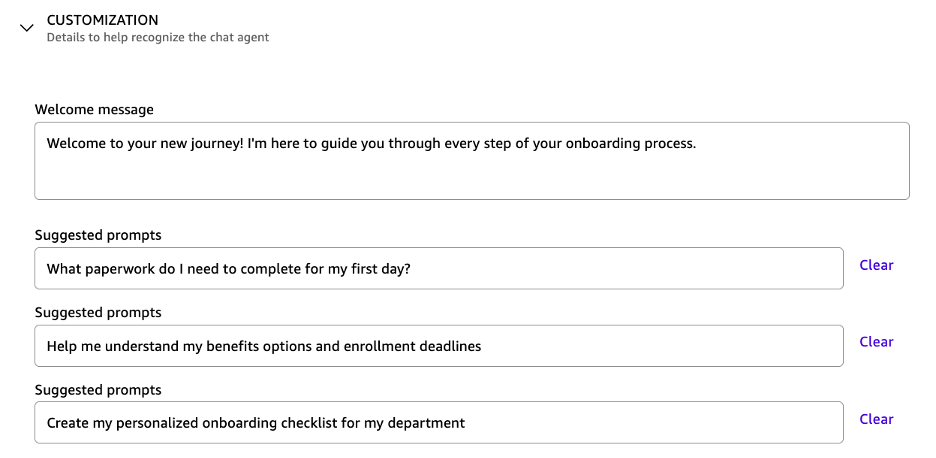
Finally, customize the agent with a welcome message and suggested prompts. You can test the agent with realistic scenarios, tune the experience, and share it with a pilot group so HR can validate the workflow before broad rollout. Test with real questions and tasks using the preview chat.
When you’re ready, launch the agent, and it will be available in your personal library for private use. To share with others, choose Share and add users and user groups as viewers to use the agent. You can also select other users from your team to be owners to edit and test the agent along with you. HR managers can share the custom agent with new employees by using the sharing options in the navigation pane to grant access to specific team members or groups.
Employee
The following sequence diagram shows how an employee uses the onboarding agent to complete required tasks and track their Day 1 progress in one place.
Use the onboarding agent
After the agent is published and shared with employees as viewers, they can open it from the link HR provides (for example, in their Day 1 email or HR portal) or from the chat agents list in Quick, and then use it as follows:
- The employee opens the shared HR onboarding agent from the link or from the chat agents list and starts a new Day 1 conversation.
- The agent shows the latest onboarding checklist from the HR Onboarding space and provides links to required forms, training, and internal pages so the employee can move through the steps in order.
- The employee asks policy or benefits questions in plain language, and the agent answers using content from the HR Onboarding space and connected HR knowledge sources so responses match HR-approved language.
- In this setup, when the employee requests equipment or application access, the agent uses a Jira action connector to create an issue in the HR onboarding project and returns the issue key and link so you can see the request end to end without touching production HR systems.
- For sensitive steps such as I-9 verification, tax forms, or direct deposit, the agent directs the employee to the appropriate HR system or secure portal instead of collecting documents in chat so sensitive data stays in the right place.
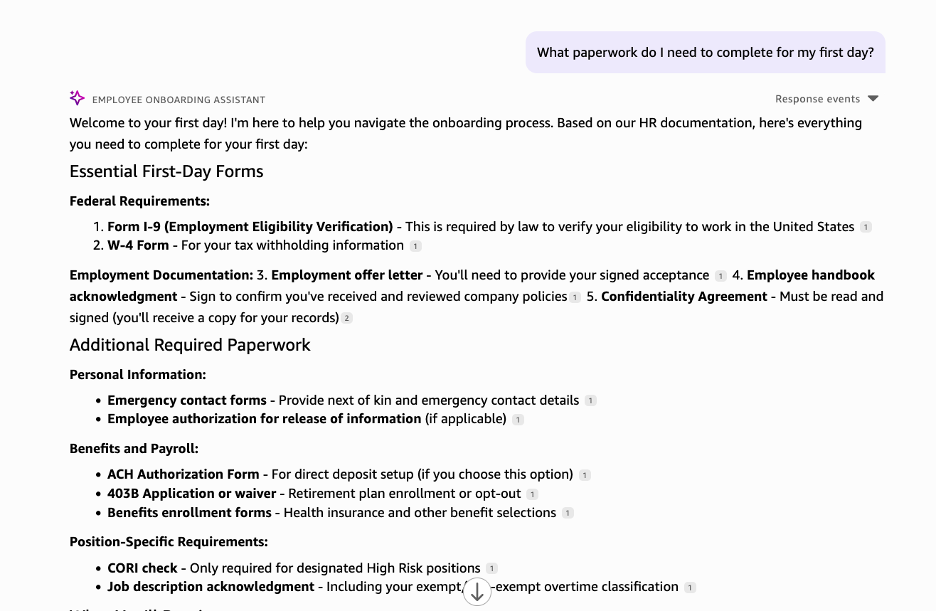
As an employee, the experience is simple: they open a single chat, see their Day 1 checklist, ask questions in natural language, and let the agent open requests and point them to the right systems. Instead of juggling emails, portals, and tickets, onboarding feels like a guided conversation where each next step is clear.
You have now set up the HR Onboarding Confluence space with sample HR documents, created a custom onboarding agent in Quick, configured its behavior, connected HR knowledge, and added Jira actions for requests. You can use this setup as a proof of concept with a small group of new hires or HR partners, then extend it by adding more content, additional actions, or new spaces for other HR workflows such as performance reviews or policy updates.
Guardrails and safety
Quick includes built-in safety and content controls for chat agents, so you can follow along with this post using the default settings in your account. If you want to experiment with policy controls as part of this proof of concept, you can also add a small list of blocked words or phrases so the agent avoids specific terms in HR responses (for example, informal slang or discouraged wording). Blocked terms are configured on the Quick console and applied across agents in your account. For step-by-step instructions and additional security options such as access control and encryption, see the Amazon Quick User Guide.
Quick tiers
Quick offers two user subscriptions: Professional and Enterprise. Professional supports everyday use of chat agents and spaces, running Amazon Quick Flows and Amazon Quick Research, and viewing Amazon Quick Sight dashboards, with the ability to create and share custom agents and spaces. Enterprise includes everything in Professional plus advanced authoring features such as configuring actions, creating knowledge bases, building automations in Amazon Quick Automate, and authoring dashboards in Quick Sight, with larger monthly usage allowances. A 30‑day free trial is available for up to 25 users per account. For details, refer to Amazon Quick pricing.
Conclusion
This post showed how to build an HR onboarding chat agent in Quick, attach HR content, add actions and optional flows, and share it with employees. Start with a pilot that covers your most frequent questions and two or three requests, review usage, and refine the agent’s instructions and content. For next steps, expand the HR space, add additional actions as needed, and review the Quick documentation for advanced configuration. Beyond onboarding, HR teams can explore building agents for employee self-service, performance management, talent acquisition, learning and development, analytics, and off-boarding processes to transform their entire HR operations.
Ready to transform your workplace productivity? Get started with Quick, explore pricing options that fit your needs. Click here to begin building your own HR agent, explore our official documentation for detailed implementation guidance, or contact your AWS account team to discuss how Quick can transform your organization’s approach to data-driven decision-making.